




Welcome to our Q4 release.
We know release notes aren’t page-turners. So, here’s the short version with the most useful new features and fixes. Careful readers might also spot a small bonus hidden between the lines.
You’ll find the exhaustive list of fixes on the Wiki Release Notes page.
Improved Management with Instance Offline View
In previous versions of dbWatch there was little information about lost instances. While you could clearly see the connection was broken, you couldn’t see details about what happened before the connection was lost.
It made it hard to answer questions like
- What jobs were running when we lost the contact with this instance?
- What was the last known status of those jobs?
- When did we last successfully collect data from this instance?
- Do we have any indication of why the connection was lost?
That’s why we’re introducing the Instance Offline View. It presents the last state that the dbWatch Server collected from the instance, before it went offline. It gives you a snapshot to work from when you can’t access the information stored on the instance.

Why it matters for DBAs and operations teams
Offline incidents no longer mean a complete blackout. Instance Offline View helps you understand impact and trouble shoot faster once the instance is back online.
With Instance Offline View you can
- Click on an offline instance and see the last known list of jobs.
- View the last recorded status and state of those jobs.
- See the timestamp for when those jobs last ran.
- Get relevant connection errors.
Read: All the release notes for Instance Offline View.
Policy Based Deployment Provide Centralized dbWatch Deployment
If you have dbWatch installed on several clients and servers, you need to individually sign into each machine and run the install and upgrade. Policy Based Deployment lets Windows users prepare everything centrally and then deploy dbWatch upgrades centrally to all your hosts.
With Policy Based Deployment on Windows you can
- Deploy dbWatch to new servers and clients from a central point
- Define and target specific sets of machines for install or upgrade
- Upgrade existing dbWatch servers in one operation
Why it matters for DBAs and operations teams
Upgrading and scaling should be an easy process. Policy Based Deployment gives you a smoother and more flexible way to install and upgrade dbWatch software, so you’ll have less manual work. Plus it makes life for DBAs in very large environments easier.
Linux users: We provide the Linux versions in repositories for either Ubuntu or Red Hat, so it’s part of the normal upgrade deployment for your server.
Read: Complete release notes, including Policy Based Deployment.
Secure remote access with Cloud Router
While not new in this release, dbWatch Cloud Router is worth a quick reminder if you manage databases across multiple networks or customer environments. Cloud Router gives you secure, encrypted, outbound-only connections between dbWatch installations in different network environments, so you don’t have to open inbound firewall rules or maintain a tangle of VPNs.
With Cloud Router you can:
- Replace per-customer VPN setups with a single, scalable access model
- Keep customer environments isolated in separate networks while still managing them centrally in dbWatch Control Center
- Use outbound connections from each site, reducing exposure from inbound firewall openings
- Log and audit access to database servers for security and compliance reviews
Cloud Router is already available for dbWatch Control Center. If you’re an MSP or manage many separate security zones, it can simplify access, reduce VPN-related risk, and give you a clearer overview of all environments.
Read more: Cloud Router feature page.
dbWatch MSP story: How a Managed Service Provider for Databases Found a Secure Management Method
Small and Satisfying Improvement
Sometimes the best improvements are the quiet ones. This release adds a safer way to handle one-off configuration jobs without accidentally turning them into recurring tasks.
Safer One-time Jobs – Manual Scheduler
Some configuration jobs should never run on a schedule. With Manual Scheduler, you can create one-time jobs such as migration or clean-up tasks and be sure they only run when you explicitly trigger them.
Get a dbWatch Sticker
Dear reader, you’ve made it this far. As a reward we’re offering a Keep Calm and Query On sticker to the first 10 people to drop us an email. Write sticker please in the subject line and a business mailing address in the body.
For GDPR: we will not be using this information for any advertising, and all information will be deleted after sending. Due to the holidays and slow mail, stickers may arrive at the end of January.
Better Microsoft SQL Performance First View
In this release, we have made a series of improvements to Microsoft SQL performance analysis in dbWatch Control Center. dbWatch users with large workloads asked to see more information faster about SQL statements.
Use a new SQL Event Collector job for deeper tracing
In addition to the existing SQL statistics job that collects performance data every five minutes, there is a new SQL event collector job. This job uses a different capture method and records long running statements together with user, host, session and application information. You can enable it on selected databases when you need extra detail about who is running a statement and who is affected by poor performance.
Learn the details about how Event Collector works.
See statement text faster with Session Statistics
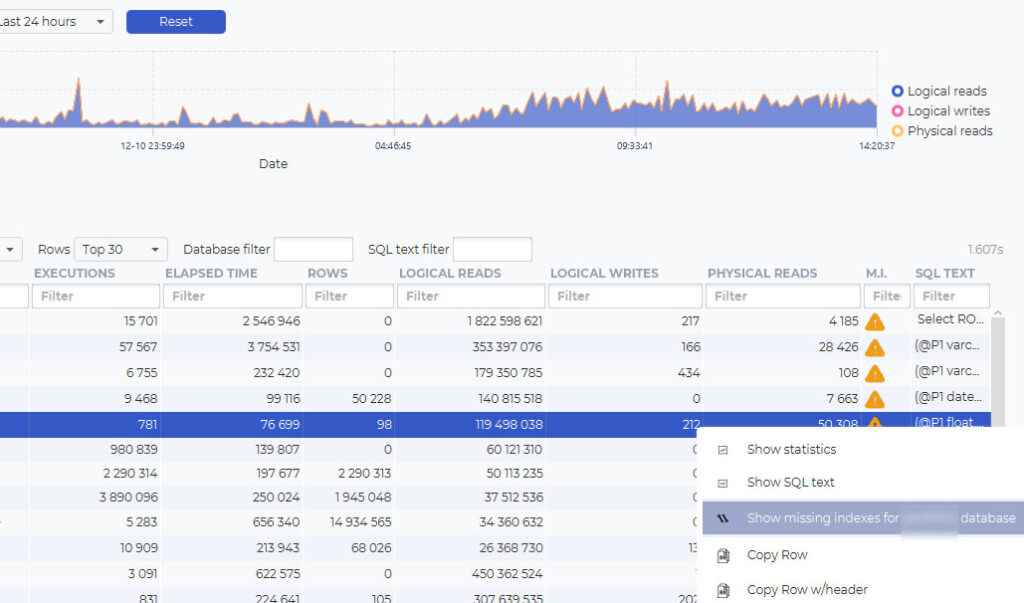
The main list of resource demanding SQL statements now shows the actual statement text directly on the line. You can move the mouse over the last column to see the full statement, instead of opening each row one by one.
Learn more about the details of Session Statistics.
Parameters and configuration of Session Statistics.
Understand where a statement comes from
The view now gives clearer information about which database each statement belongs to, and includes improvements to filtering in the main table. This makes it easier to work through long lists of statements.

Work with missing index recommendations in a readable way
Missing index details are no longer shown as raw XML. When you click the warning icon, the information is presented in a formatted table that shows the table, the columns involved, and the recommendation. From the same menu, you can choose to create the suggested index directly.
Handle very large numbers of statements more efficiently
Under the hood, we have reworked how the data is joined and retrieved, so the SQL performance view handles hundreds of thousands of statements more efficiently than before.
Filter field available in management views
We have added a database filter field to the management views, making it easier to quickly narrow down long lists of SQL Statements.

Why it matters for DBAs and performance teams
These changes make the SQL performance tools easier to use when you have You can see what each query is doing, understand its context, act on missing index recommendations, and work more efficiently with large workloads.
Keep control of Brent Ozar maintenance scripts across your farm
Many SQL Server teams use Brent Ozar’s free maintenance procedures alongside dbWatch. The procedures work well, but in larger environments it is hard to see where they are installed, which versions you have, and whether anything has been duplicated.
This release adds a helper job in dbWatch that gives you an overview of Brent Ozar modules across your instances.
With the new helper job, you can
- Scan your instances and databases to see where Brent Ozar’s maintenance procedures are installed
- See which modules are in use, such as backup, index maintenance and related procedures, and on which instances they run
- Detect duplicates when the procedures are installed in more than one database on the same instance and get a warning
- Check the versions that are installed and see the code from within dbWatch, with an option to drop procedures if needed
- Use Brent Ozar’s scripts together with dbWatch maintenance, while keeping a clear overview so they do not conflict in your environment
Why it matters for DBAs: If you already rely on Brent Ozar’s maintenance scripts, dbWatch now helps you keep track of where they run and which versions you have. That makes it easier to govern these procedures in larger environments and to use them alongside dbWatch without losing control.
Read more in the release notes.
Easier database copy between SQL Server instances
The maintenance module in dbWatch Control Center now includes a new DB Copy feature for Microsoft SQL Server. It consists of two new jobs plus management and farm views. It’s available for customers with the Automated Maintenance Module.
With DB Copy, you can:
- Copy databases between SQL Server instances using dbWatch scheduled jobs
- Manage cross instance copies from the maintenance module
- Have an overview of the status of what’s happening when and where
Why it matters for DBAs and operations teams
Setting up and maintaining database copies between instances is often a manual, error prone job, especially when you want it to run regularly. DB Copy lets you use dbWatch to handle copy and restore backups as part of your normal maintenance setup, so you get a repeatable automated process instead of custom scripts.
Read more about it in the full release notes.
What’s Next
Coming up in 2026 dbWatch Roadmap, we have work planned on several jobs and some module work, as well as your requests that will come up as the year progresses.
Some highlights that are expected to launch
- Teams/Slack integration
- Compliance module PostgreSQL and Oracle
- Integrate, schedule and get status feedback on you own scripts
- OS monitoring
Finally, we need to end with a thank you. Thank you to all the customers who pointed out problems and helped us see where new features can save everyone a ton of time.