
Database Decommissioning Checklist for SQL Server

A man taking apart an old database as a last step on this database decommissioning checklist.

Setting up databases on SQL Server is fast and easy. Someone has a great idea, and database DB-42 is made. Eventually, DB-42 fades out of use. Then, like hundreds of other databases, it needs decommissioning. However, database decommissioning can be like trying to untangle several knots of dependencies during a fire drill.

Let’s start with an example: ten years ago, I helped a client decommission several of their databases. We isolated a set of seemingly unused databases. It was impossible to find owners, so we made many manual usage checks. One of them hadn’t been touched for eight months. We disconnected it and made a backup. Four months later, we heard from a confused scientist asking, “Where is my research?” Once a year, she logged into that database and added the compiled yearly data. We promptly restored the database.

That’s the problem with database decommissioning: It’s easy to prove that a database is used, but surprisingly hard to prove it’s unused. Manual checks can miss seasonal access, background jobs, and service accounts.

We decided there must be a better way to track database activity. So, we built a monitoring job called: database is not in use collector.  

While the name’s descriptive, it’s a mouthful. For this article, we’ll call it the Usage Tracking Job. It records all database activity in detail to answer that vital question: Has anyone actually used this database?

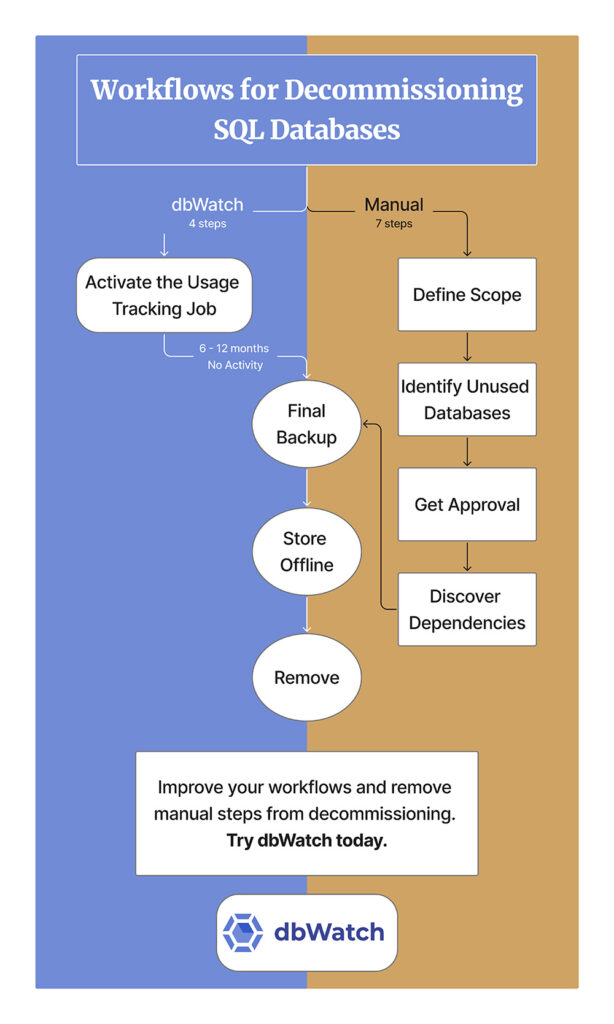
Below is a practical database decommissioning checklist for SQL Server: how to prove non-usage with evidence, take a restorable final backup, run an offline grace period, and retire from the database without nasty surprises.

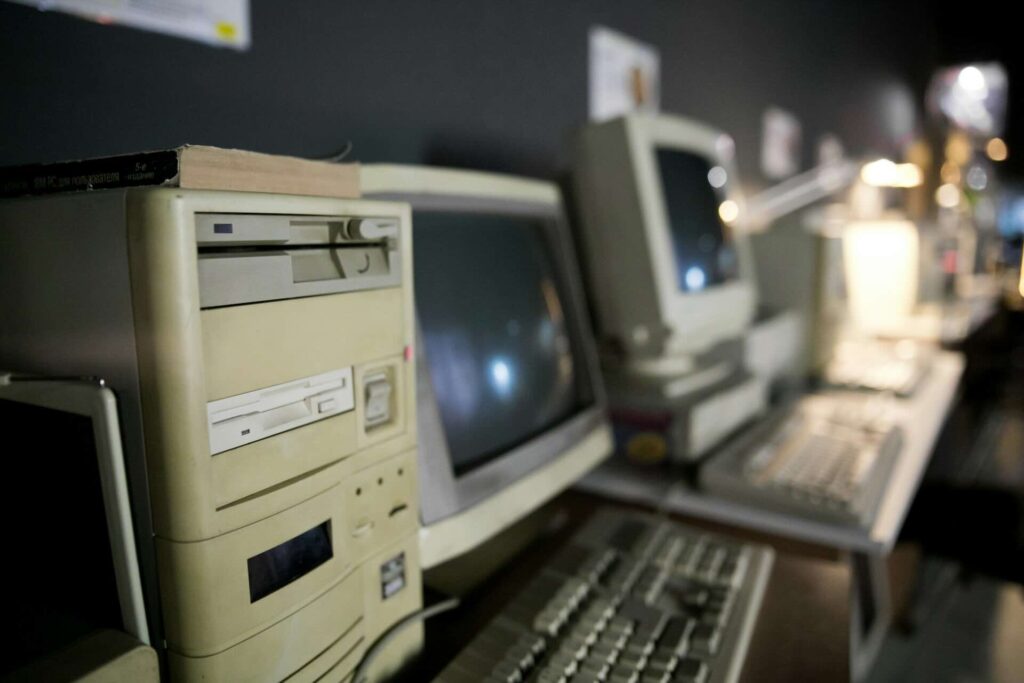
Old computer hardware gives the idea of database decommissioning

1. Define the Database Decommission Decision

You don’t want to be guessing later, so start by looking at the types of databases you have, then deciding what’s the best course of action for the database types: migrate, consolidate, retire, or archive. Then you’ll want to identify who owns the data, if possible.

If you don’t know who owns the data, don’t panic. It can be that the database was assigned to someone who has left the company or moved to a different department. In cases where there’s no official owner, you simply have to retire or archive unused databases.

No matter if you know the owner, you’ll need to track your actions. Before moving ahead, open a change request with the database name, instance, environment, target date, and the rollback plan.

 2. Identify Unused Databases in SQL Server

The goal here is to ensure that, as in the example in the intro, a once-a-year user doesn’t show up. Manually, this involves checking:

  • Database memory change
  • New logins
  • Temp table changes
  • Read and write changes

To do this, as well as the dbUseCollector Job, check these points every 10 minutes for a year. We’re joking, that’s not physically possible. You could write your own monitoring job, or just make an educated guess, make a backup, take it offline.

For dbWatch users, simply go to Managed Jobs View and turn on the the Usage Tracking Job, as it’s not enabled by default. Then run it for the set period you decided in Step 1. Review the the Usage Tracking Job report after six to 12 months and confirm no activity. In our experience (anecdotal), after six months of no activity, less than one in ten databases need to be restored; after 12 months less than one in 100 need to be restored. You decide the amount of risk you’d like to take.
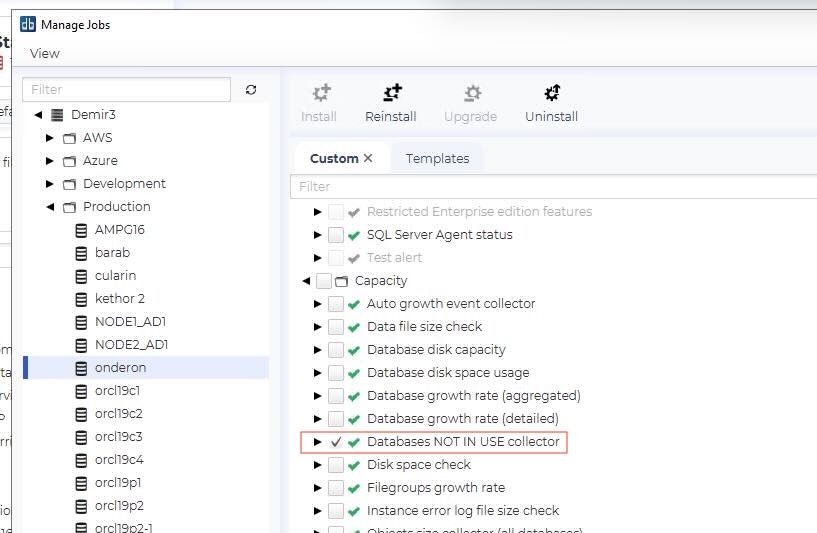
How dbWatch works for database decommissioning, screenshot of where to turn on the databases not in use collector.
How to turn on Databases Not In Use Collector.

You might want to take an ‘evidence snapshot’ of the report to show that there is no activity and add it to the change request (RFC).

Consolidating Databases as Part of a Decommissioning Project

In large SQL Server estates, decommissioning is also one of the steps that makes consolidation possible. Before you move workloads onto fewer servers, you remove the dead weight of unused databases and forgotten dependencies.

With the Usage Tracking Job, turns consolidation from ‘lift and shift everything’ into a triage. You decommission the unused databases, then migrate and consolidate what’s actually in use, with evidence to back up your choices.
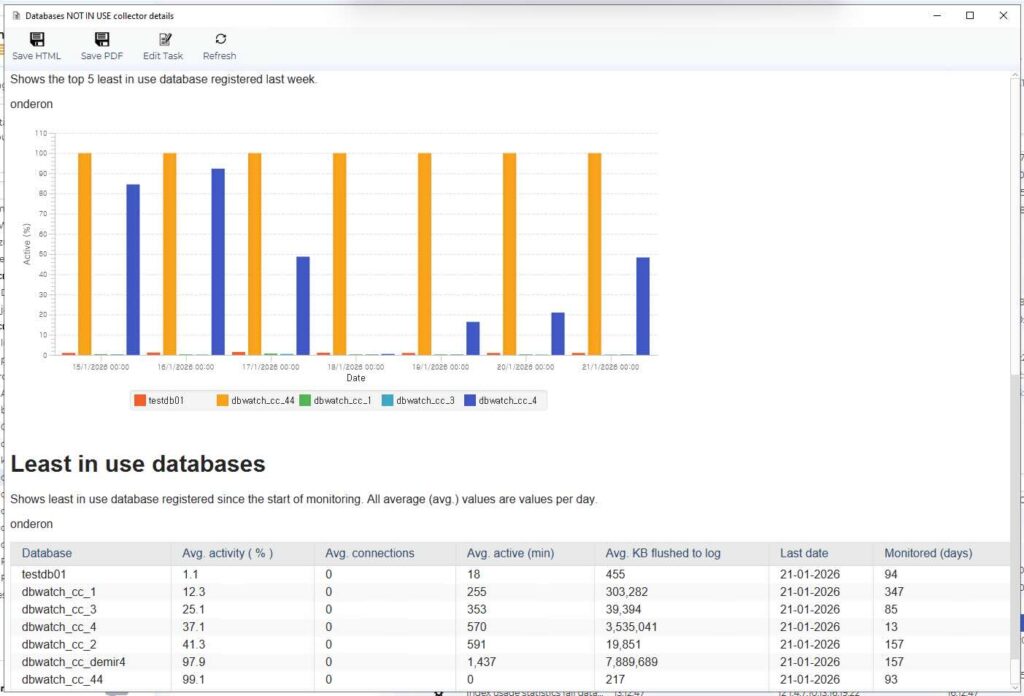
A screen shot of the dbUseCollector in a test environment.
An example of dbUseCollector in a test environment.

3. Get Database Decommission Approval: Ownership Retention and Governance

In a perfect world, you could send an email to the entire company, and all database owners would let you know the names of their databases and what’s on them.

Haha. Many non-tech employees just access an application and don’t realize there’s a database behind it. Others forget they asked for a database to be made. And don’t forget the people who have left the company – it’s highly unlikely ownership of the databases they worked with has been reassigned.

If you find ownership, find out this key information:

  • Confirm what they know about the databases
    • Annual/seasonal processes
    • Regulatory reporting/audits/month-end or year-end routines
    • External users, vendors, or integration
  • Agree on the retirement decision and sign-off conditions
    • How long the database must show ‘no use’ before action
    • How long to keep offline but restorable
  • Decide retention and archive requirements
    • Retention period for backup storage
    • Storage location and access control
    • Encryption requirements
    • Who authorizes restore requests
    • What does the final deletion mean after retention

Keep in mind, if you actually find an owner it’s unlikely that you’ll need to delete the database. When someone remembers it, they are usually using it.

4. Discover Dependencies to Catch the Silent Consumers

Even if you don’t find owners or logins, you can still have background usage taking place.

  • Searching for SQL statements referring to that database
  • Search for SQL Agent jobs like:
    • SSIS or ETL pipelines, scheduled tasks, data loads, report subscriptions
    • Check for scripts written by ex-employees or consultants that are still running.
  • Identify external users, vendors or integrated endpoints
  • Check cross-database dependencies such as linked servers

As an alternative, dbCollector Job tracks connections that make changes. If they don’t make changes, you will see that someone connected without taking action, the job doesn’t trace if they are reading data. In theory, it could be possible to track everything, BUT a job with that detail would use too many resources on your system.

We’ll end this section with a bit of humor, a DBA we spoke to for this story cheekily said, “You can just back up and take your whole system offline and restore it as people scream. It’ll be 100% downtime, but you’ll be 100% sure that only used systems are restored.”

5. Make Final Backup for Decommissioning a Database: Verify and Restore Proof

Now’s that the first four steps are complete, it’s time for action.

  • Take the system offline
  • Take a final full backup, plus required logs, if the company policy requires it, plus all user configuration, privileges and access
  • Validate back up integrity, using the organization standard
  • Perform a restore validation

Finally, get out that change record you started in #1 and record: backup location, encryption keys, and/or certificates, restore notes and how to restore it.

6. Keep Databases Offline for the Grace Period

Now apply the wait time determined in the stakeholder conversation (or a logical amount of time if there is no owner.) Now simply wait and see if there are access attempts or complaints.

If a request is made, bring things back online. Record who needed it, why, and any further action needed.

A man works on writing a database decommissioning checklist.

7. Remove the Decommissioned Database

You’ve waited for the agreed time, and there’s been no complaint or action. Now it’s time to drop the database and remove all remaining references. If your company keeps inventory or documentation, update it.

Finally, put your final backup into storage for the agreed retention period. Schedule an alert for when the period ends and then deletes backups using the agreed secure process. The last step is to record the destruction of evidence and link it to the original change record.

Database Decommissioning Checklist Recap

If you take only one thing from this checklist, make it this: Make and use that change log. It offers proof that the database was unused over a full business cycle and attaches it to the change record.

When you can show who accessed what and when (or that nobody did), the database decommission conversation stops being guesswork and becomes a controlled change.

See dbWatch helps with decommissioning

Schedule a demo and see the steps.

Copy to a Test Environment From Production

A illustration of copying a database to a test environment.

Everyone knows that it’s important to have an updated version of production for your test environment. However, actually making sure that you have an updated copy for the test environment is another story. It’s easy to overlook stale test data until it hurts. A query that tested perfectly can be released and cause rollbacks that nobody saw coming.

Keeping a test environment fresh, usually isn’t difficult, but it can eat time because it involves recurring manual work. When it’s done across multiple targets with deadlines and interruptions it can be a weekly drag.

This post covers a common and proven approach to moving production to test, via backup and restore cloning, and explains how dbWatch Control Center’s dbCopy automates the process. We’ll start with practical use cases, then follow with a tech-light explaination.

Three Use Cases for dbCopy

With dbCopy you can clone one database to many targets, many databases to one target, or one-to-one, depending on how your environments are set up. It automates a controlled backup-to-shared-storage and restore workflow, so cloning becomes scheduled, repeatable, and trackable across environments.

1. Up-to-date Copy of Test Environment for Safer Patch and Release Testing

For most DBA teams, refreshing test from production is a reoccurring time sink. The work can eat into weekends, if it’s expected that the DBA delivers the fresh copy of Friday’s production to use as a test environment on Monday morning at 8 am.

The pain usually looks like this:

  • Long-running manual workflows, often outside of normal hours
  • Avoidable mistakes created by small variations of paths, naming or permissions
  • Learning about a failure long after something went wrong.
  • Having the dev and test stalled while the environment catches up.

That’s why many teams want the refresh to be predictable, trackable and automated instead of a weekly fire.

Automate Cloning to Test Environment

dbWatch Control Center dbCopy is built to deploy production to test through a controlled backup to shared storage and restore workflow.

In practice, dbCopy lets you:

  • Define a source (production) and one or more targets (test/development)
  • Run the refresh as a repeatable job instead of a manual routine
  • Schedule refreshes so teams start the week (or day) with a current environment

dbCopy is part of the Automated Maintenance Package in dbWatch Control Center. Once it’s configured, it turns a slow and repetitive DBA task into a job that runs consistently, saving DBAs hours of work.

2. Be Ready for Disaster Recovery with Automated Standby Clone

Disaster Recovery (DR) routines aren’t always static or permanant. They tend to drift: new databases get added, restore paths change, storage fills up, someone changes the backup location, and the “standby” is slowly made useless.

Some DBA teams use dbCopy to keep an up-to-date standby clone of production databases on a separate SQL Server system (or environment) using a repeatable backup-and-restore refresh. You can run it on whatever cadence fits your recovery objectives, so the standby stays current without a manual refresh becoming another weekly task.

3. Validate Restore Ability as an Early Warning Signal

Most DBA teams lose sleep over restores, not backups. Restore failures often show up at the worst time, and the root causes are usually boring-but-deadly with issues from missing permissions to broken access to shared storage or not enough disk space.

Because dbCopy uses a backup-and-restore workflow as part of cloning, it can function as a continuous restore test. If a scheduled clone fails at the restore step, that failure is an early warning that something in your restore path is broken—or getting worse—before you discover it during an incident.

In practice, this helps surface problems like:

  • Backups not readable from shared storage (share/network/access drift)
  • Restore failing due to disk capacity, path changes, or file placement issues
  • Permissions or service accounts drifting on the target host
  • Restore duration increasing unexpectedly (RTO risk creeping up)

Having validation exercises the restore process often enough that you find issues while they’re still routine fixes.

Note on Sensitive Data in Test Environments

A cloned test environment contains production data, if sensitive information is in production, then the test environment must be treated as sensitive too. Data masking or removal is not handled by dbCopy and would need to be done after cloning if required.

What dbCopy Means for your Team

If you routinely copy test environment data from production, the work is rarely “hard” but it is repetitive and time-consuming—especially when it has to happen on a regular schedule or across many SQL Server databases. dbCopy automates turning deployment production to test into a controlled backup-to-shared-storage and restore workflow, so cloning becomes a repeatable job instead of a weekly manual task.

Tired of refreshing the test environment?

Book a demo and see how dbCopy can automate your production-to-test cloning.

Disclaimer: This section repeats of the information above, just explained in a less technical manner)

Tech-light section: Why Copying to a Test Environment Matters

Copying production data into a test environment sounds like a niche technical task, but it affects how safely and quickly a company can ship changes. When teams deploy to test environment, the test database needs to reflect production closely enough that the results are meaningful. If test data is outdated or unrealistic, problems show up late, often right before go-live, when fixes are expensive and disruptive.

Copy test environment routines tend to hurt in the same predictable ways: they repeat, they take time, and the organization becomes dependent on one or two people to make “test ready” happen. Even with scripts, the task still needs consistency and attention, especially when it runs weekly or across many databases.

dbCopy addresses that by turning deployment production to test into a controlled, repeatable job in dbWatch Control Center (under Maintenance for SQL Server). The goal is automate the process.

The Value of Copying to the Test Environment

Technical teams need to have an up-to-date copy in the test environment, so they know if new application versions and patches work. When DBAs have dbCopy the process is automated. The technical teams can rely on their test results and DBAs save time.

For the business, the benefit is simpler: fewer delays, fewer last-minute rollbacks, and less operational risk tied to change. For DBAs, cloning production to test and development can easily eat up three to six hours of manual work. When that work is manual and frequent, it becomes a bottleneck. When it’s automated, teams start the week with an environment that’s ready for testing without needing someone to carve out half a day to get it done.

dbCopy also clones using a backup-to-shared-storage and restore approach. That has a side benefit: if restores start failing during cloning, it can act as an early warning that restore problems may exist more broadly, which is valuable long before an actual incident forces a restore under pressure.

Make copying a test environment reliable, scheduled, and easy.

Request a demo today.

Clarification about dbCopy

dbCopy copies from production into the test environment. dbWatch does not currently support deploying from development to live production. Also, you need to provide your own data masking; if production data is sensitive, the test environment must be handled accordingly, and any masking or data removal happens afterwards.